How to Bind, Publish, and Ship Brand Products on PrintKK
First, you need to design a product and a brand product: How to design a product? Click here How to design a brand product? Click here
Method 1: Steps to Bind a Brand Product to a Main Product and Publish It
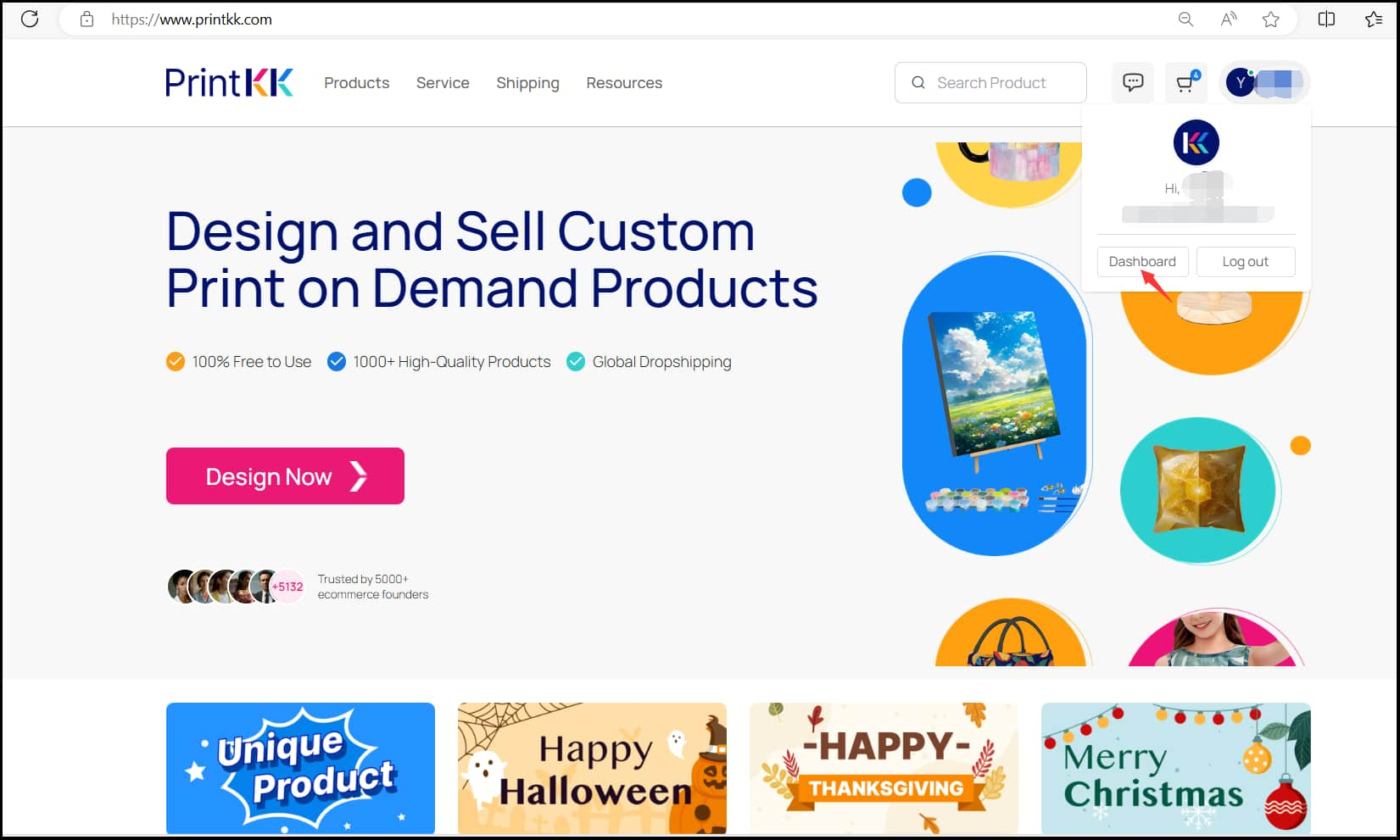
1. Go to the “Dashboard” Page 📋 Log in to your PrintKK account and navigate to the “Dashboard” page by clicking on the “Dashboard” option in the top menu.
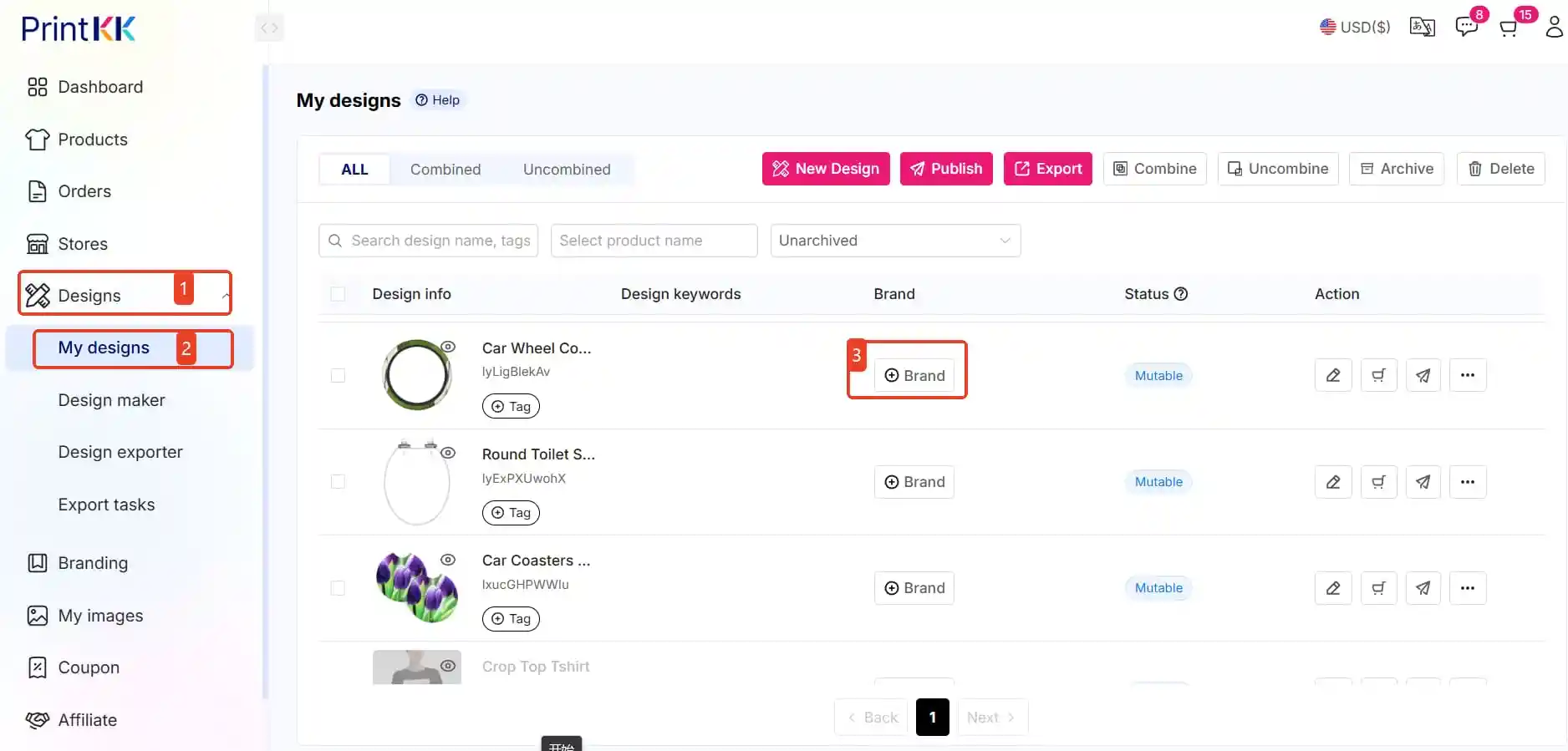
2. Click on “Design” and then “My Designs” 🎨 On the “Dashboard” page, click on “Design” in the left-hand menu, and then select “My Designs” to view all your created designs.
3. Find the Design You Want to Bind a Brand To 🔍 Locate the main product design you want to bind with a brand product. Click on the “Branding options” icon below the design.
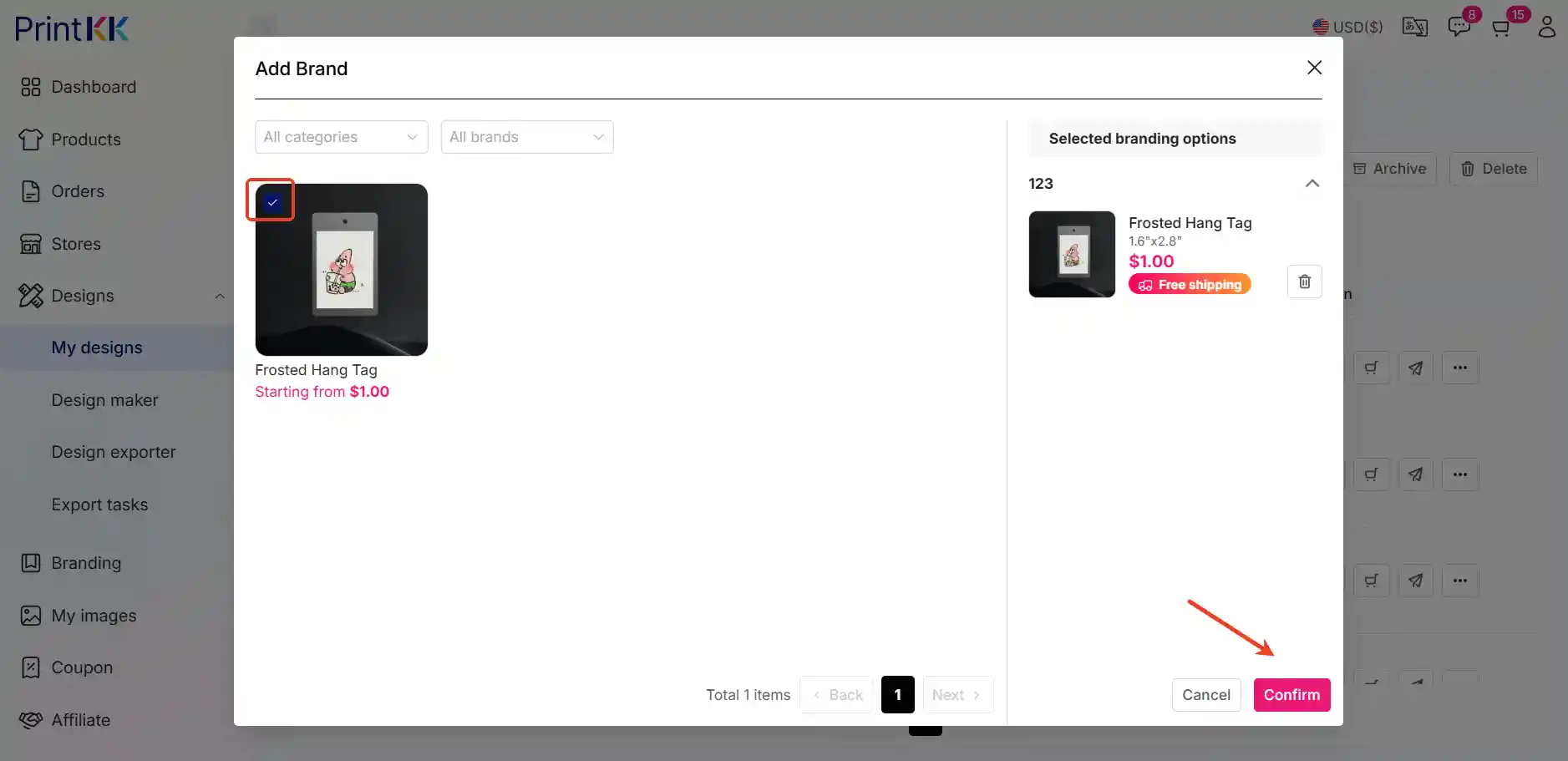
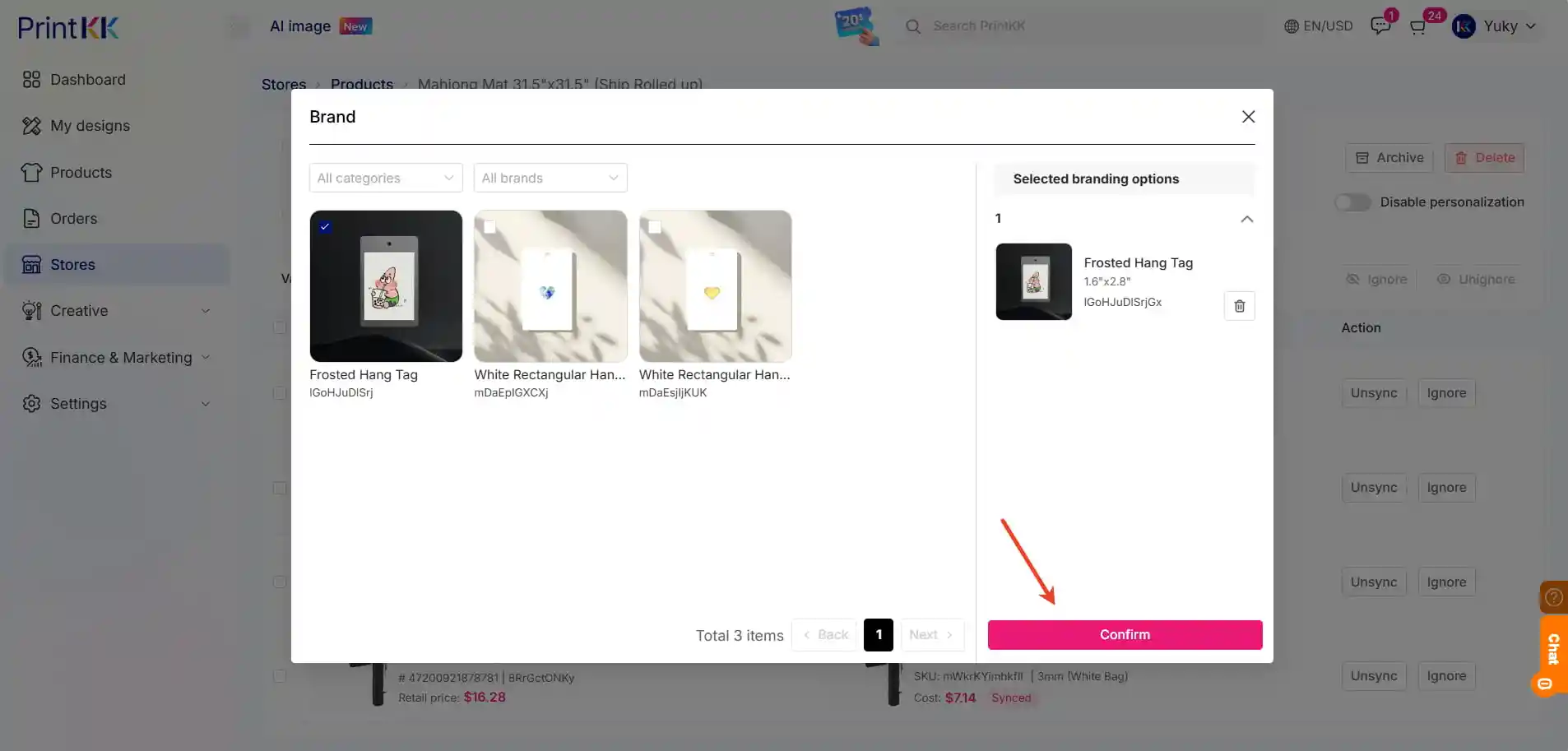
4. Choose Your Brand Folder 📁 A window will pop up showing your brand folders. Find and select the brand folder you want to bind to the design. Click “Confirm” to bind the brand product to your main product.
5. Publish and Ship Your Product 🚀 Now that your brand product is bound to the main product, you can publish it. Follow the steps to list your product on the PrintKK marketplace or your own store. Once orders start coming in, manage and fulfill them through the “Orders” section in your Dashboard.
Method 2: Edit in the Store
If your product has already been published, you can operate it in your PrintKK store.
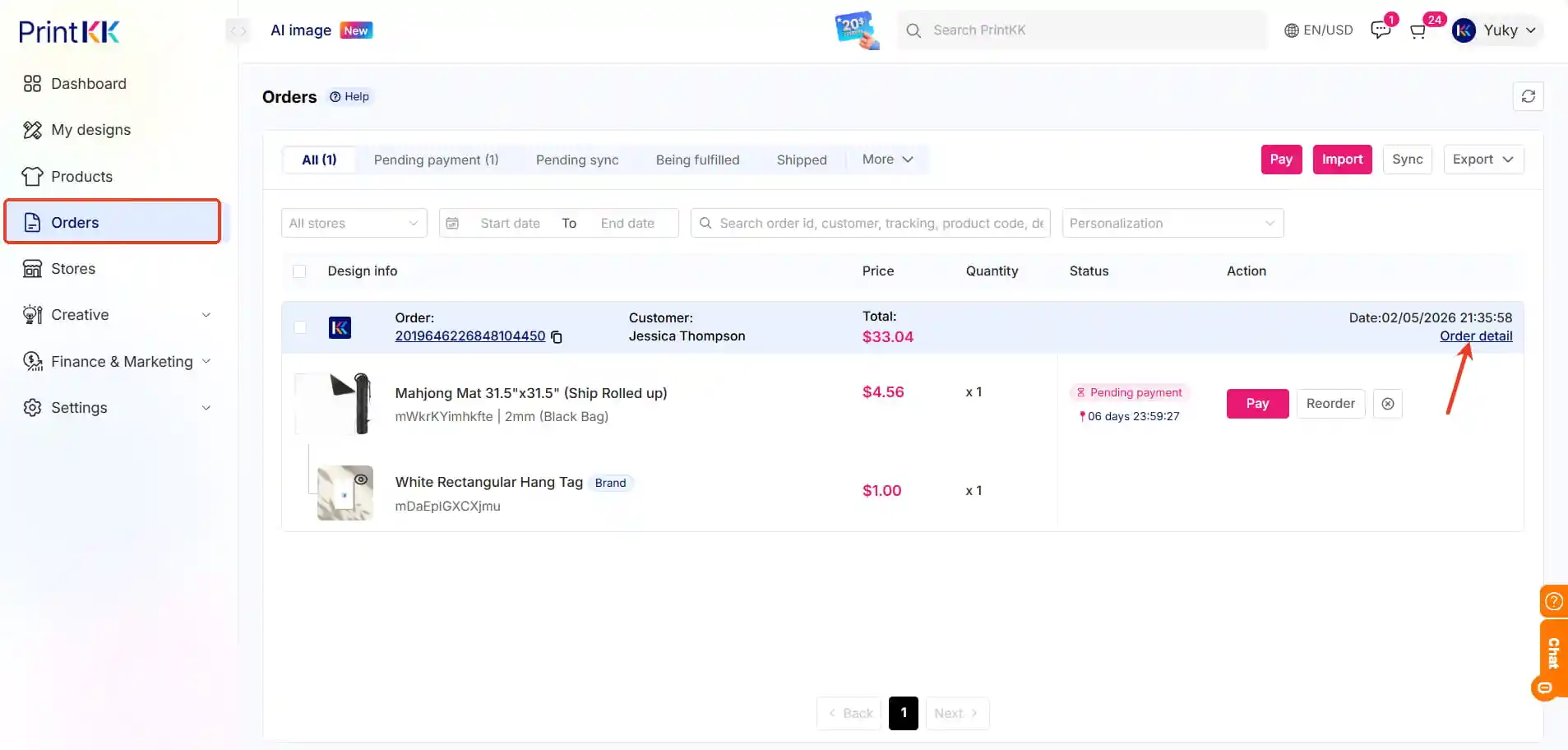
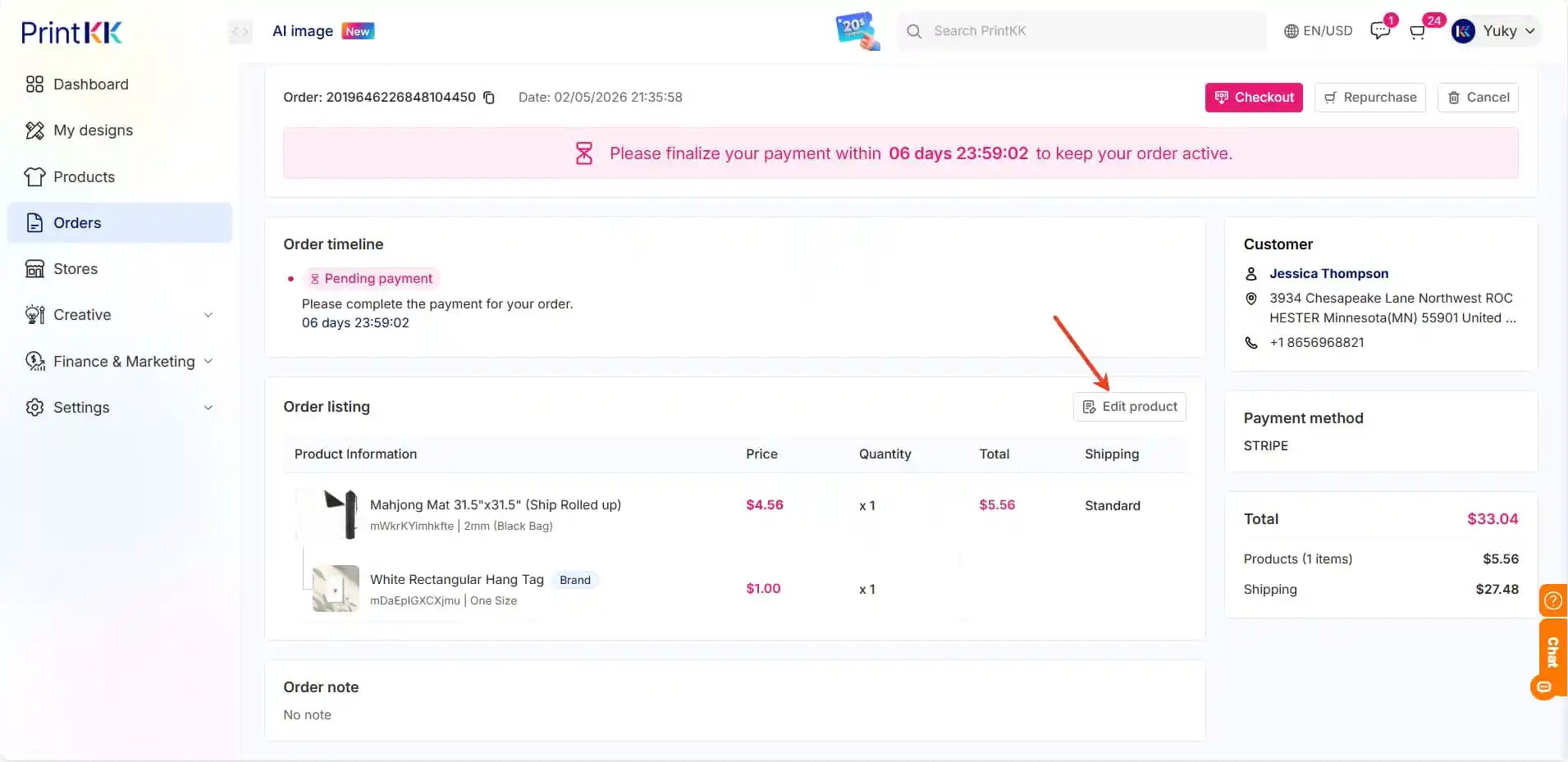
1. Locate your unpaid order and click Order detail;
2. On the order detail page, find and click Edit product;
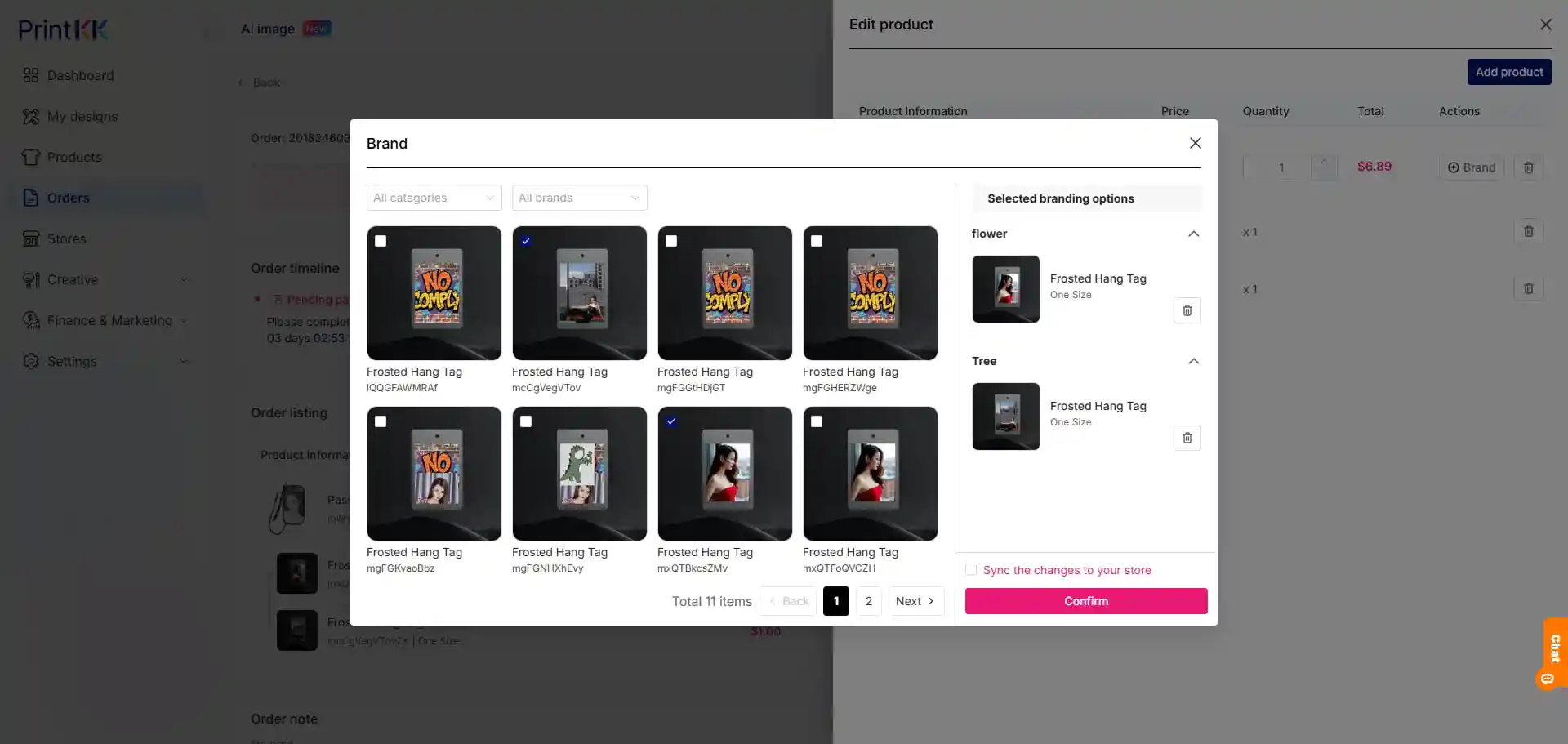
3. On the editing page, directly delete the existing branded products or add new ones;
4. Tick the box for Sync the changes to your store at the bottom of the page, then click confirm to complete the operation.
Method 3: Edit in the Store
If your product has already been published, you can also operate it in your PrintKK orders.
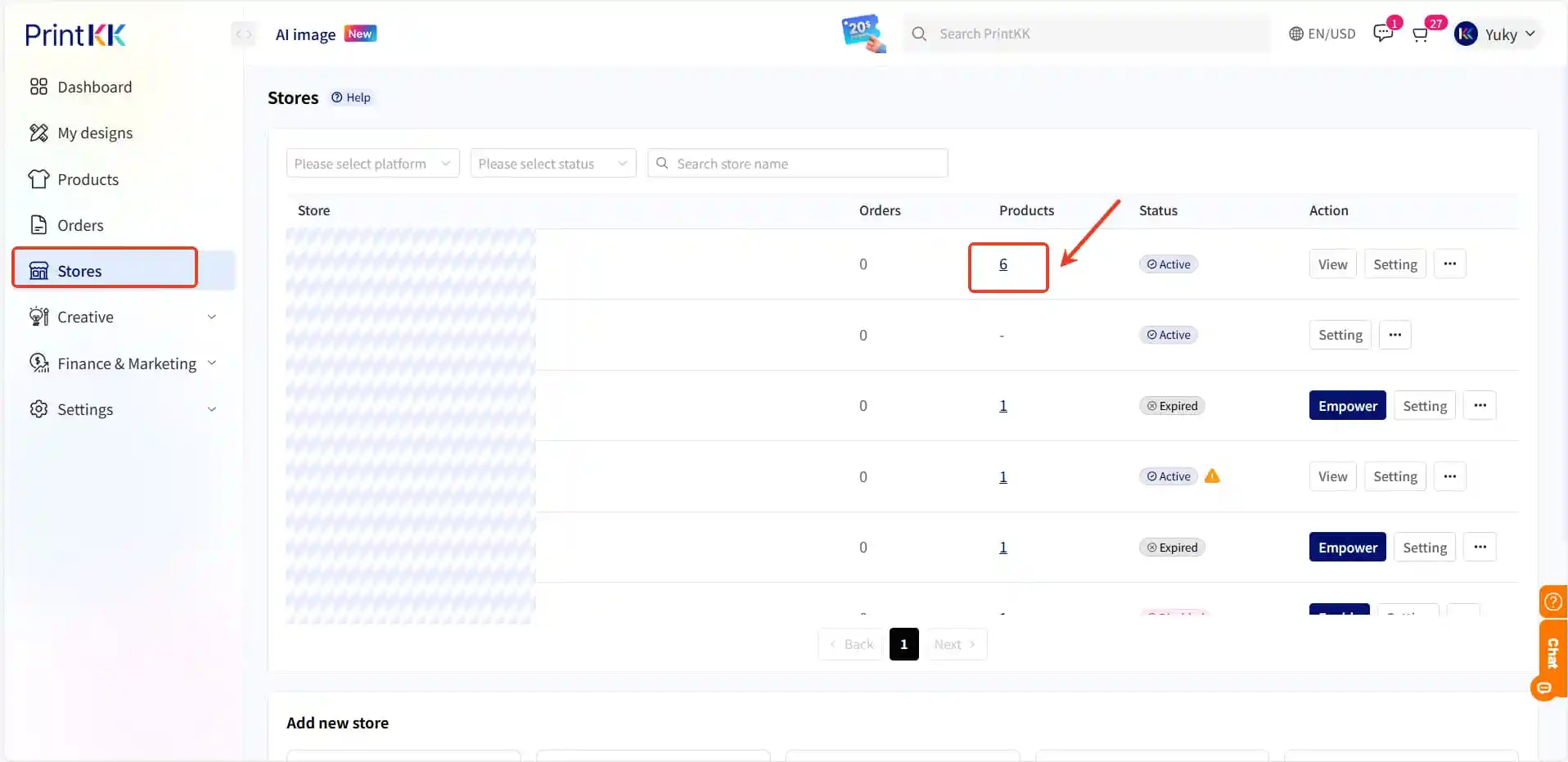
1. Go to your PrintKK store, locate the relevant product for which you want to change branded products, and click view;
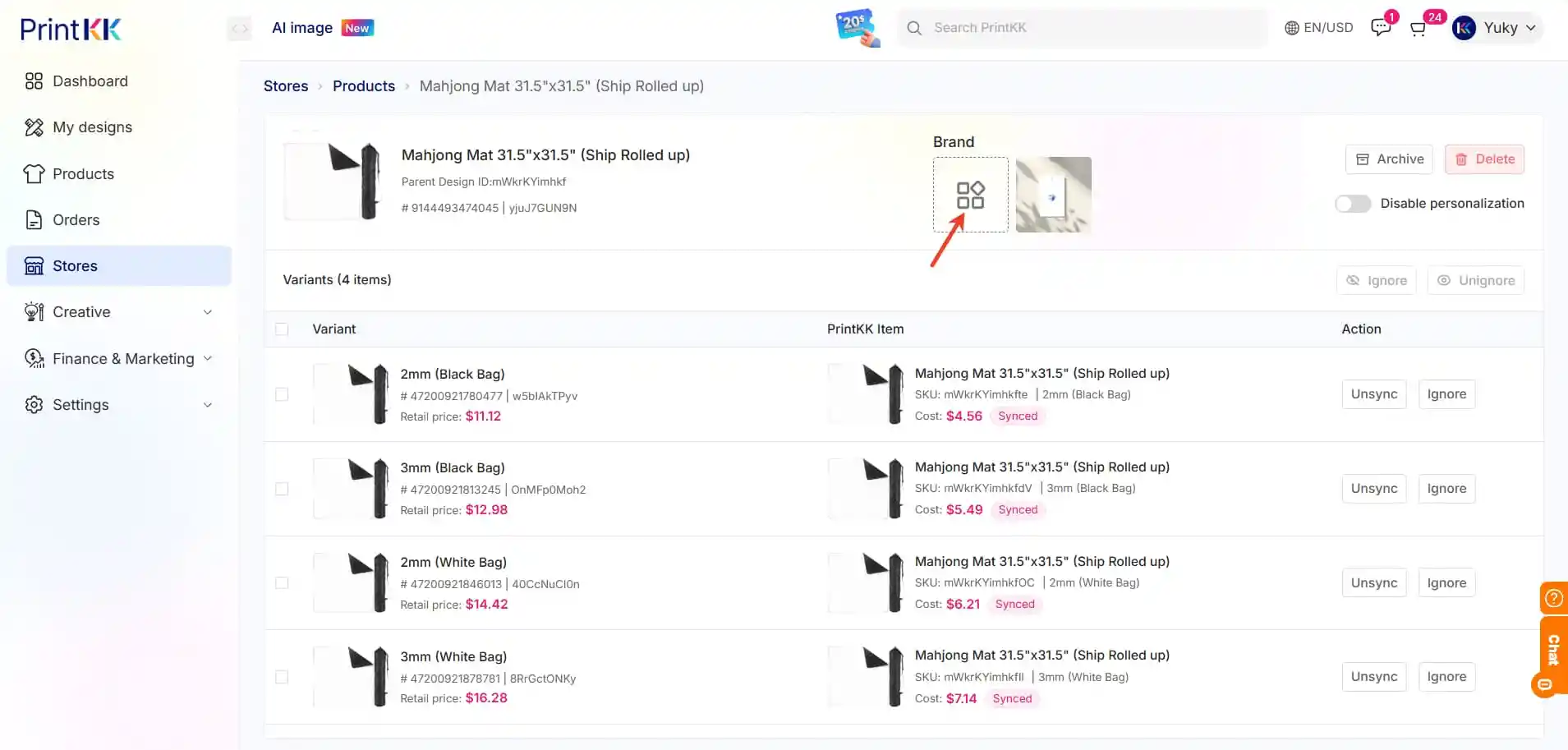
2. At the top of the product detail page, find and click the manage icon;
3. On the management page, delete the existing branded products or add new ones;
4. Click Confirm to finish modifying the branded products for the store product.
By following these steps, you can efficiently bind, publish, and ship your brand products on PrintKK. If you need any help during the process, our support team is here to assist you. Happy selling! 🚀
📧 Need Help? - Email: support@printkk.com - Chat Live: Click 'Contact us' in the lower right.
The PrintKK website uses cookies to enhance and personalize your online experience. Cookies cannot run programs or deliver viruses to your computer. We use essential cookies to make PrintKK work. Additionally, we'd like to use other cookies to improve and personalize your visit, but only if you accept.
Select specific cookies or allow all to continue. For more details, refer to our
Cookie Policy.