
Help Centre
How can we help you?


General Help Topics
If your e-commerce platform (e.g., Amazon, Wayfair, Walmart) does not have a direct integration with PrintKK, you can still fulfill your orders efficiently using our CSV/Excel Bulk Import feature.
The Key to Success: SKU Mapping
The most important step is ensuring the SKU (Stock Keeping Unit) in your store matches the SKU in your PrintKK dashboard. This allows our system to recognize exactly which product to produce.
3 Simple Steps to Import Orders:
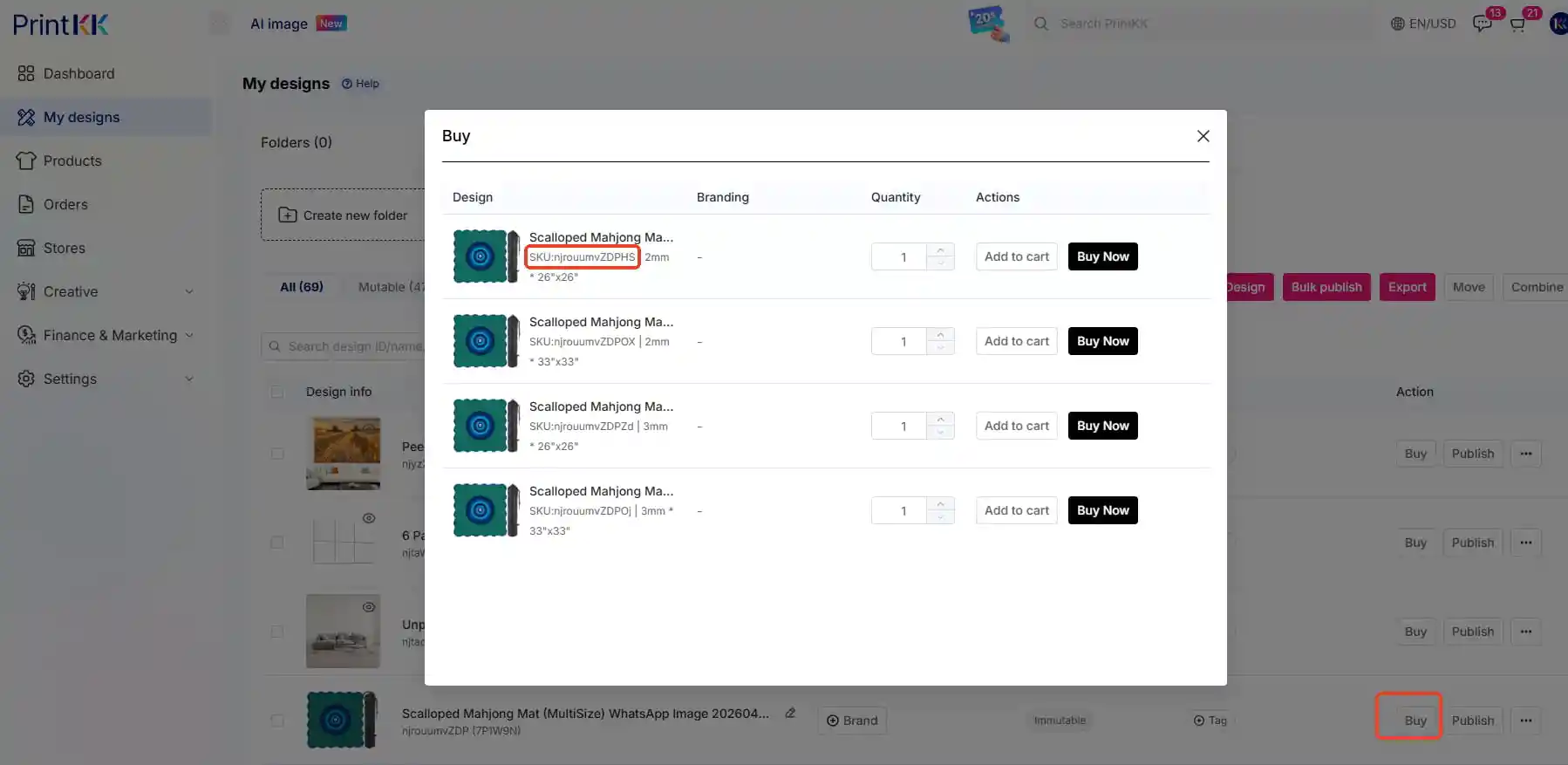
Step 1: Get Your PrintKK SKU
-Go to [Dashboard] → [My Designs].
-Find the specific product you want to sell.
-Copy the unique SKU provided by PrintKK.
Action: Set this SKU as the "Product SKU" inside your Amazon, Wayfair, or Walmart store.
Step 2: Export Orders from Your Store
-Once you receive sales, go to your store’s admin panel.
-Export your "Unfulfilled Orders" into a CSV or Excel file.
Note: Most platforms like Walmart and Wayfair provide a one-click "Export Orders" button.
Step 3: Upload the File to PrintKK
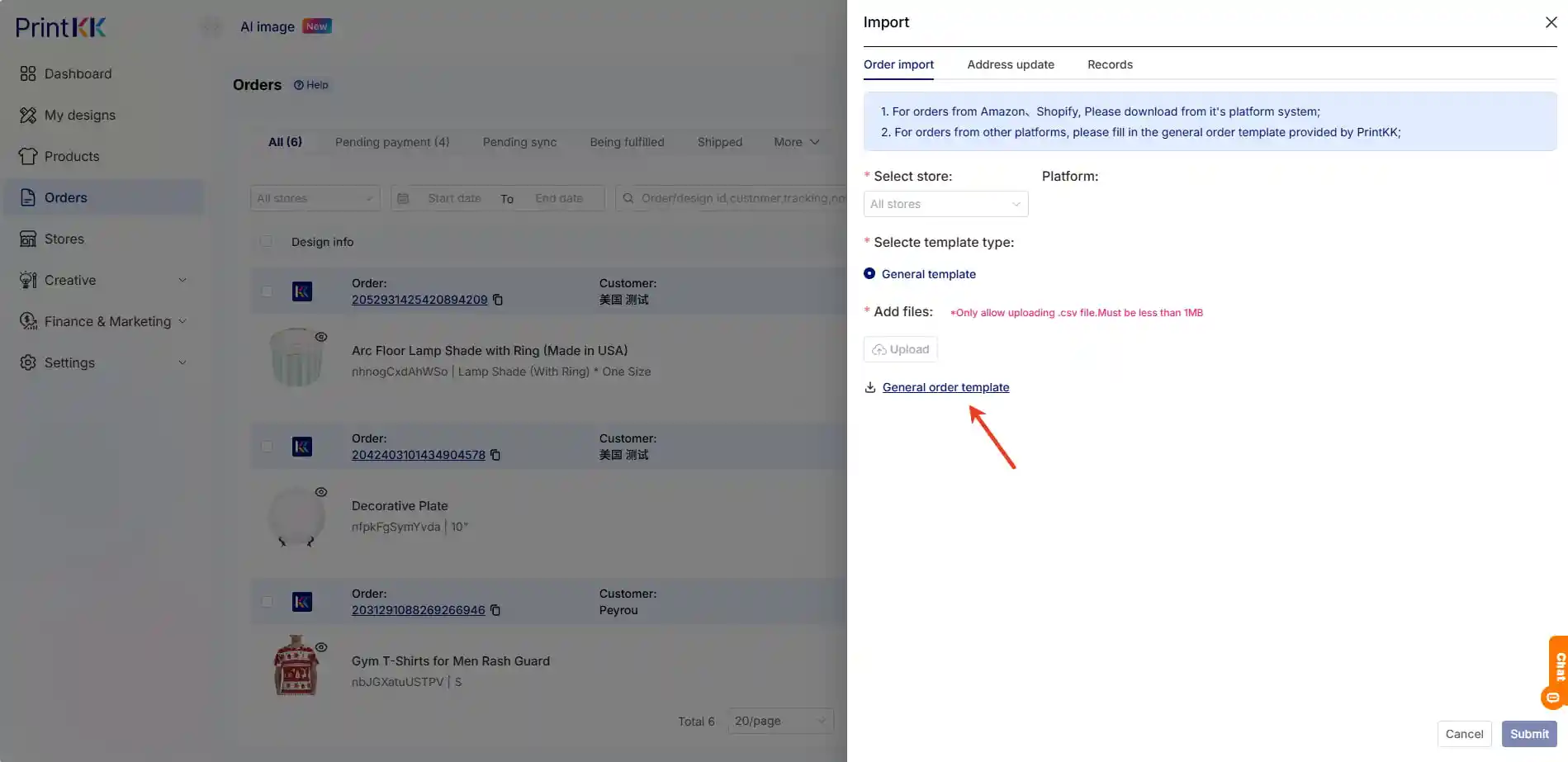
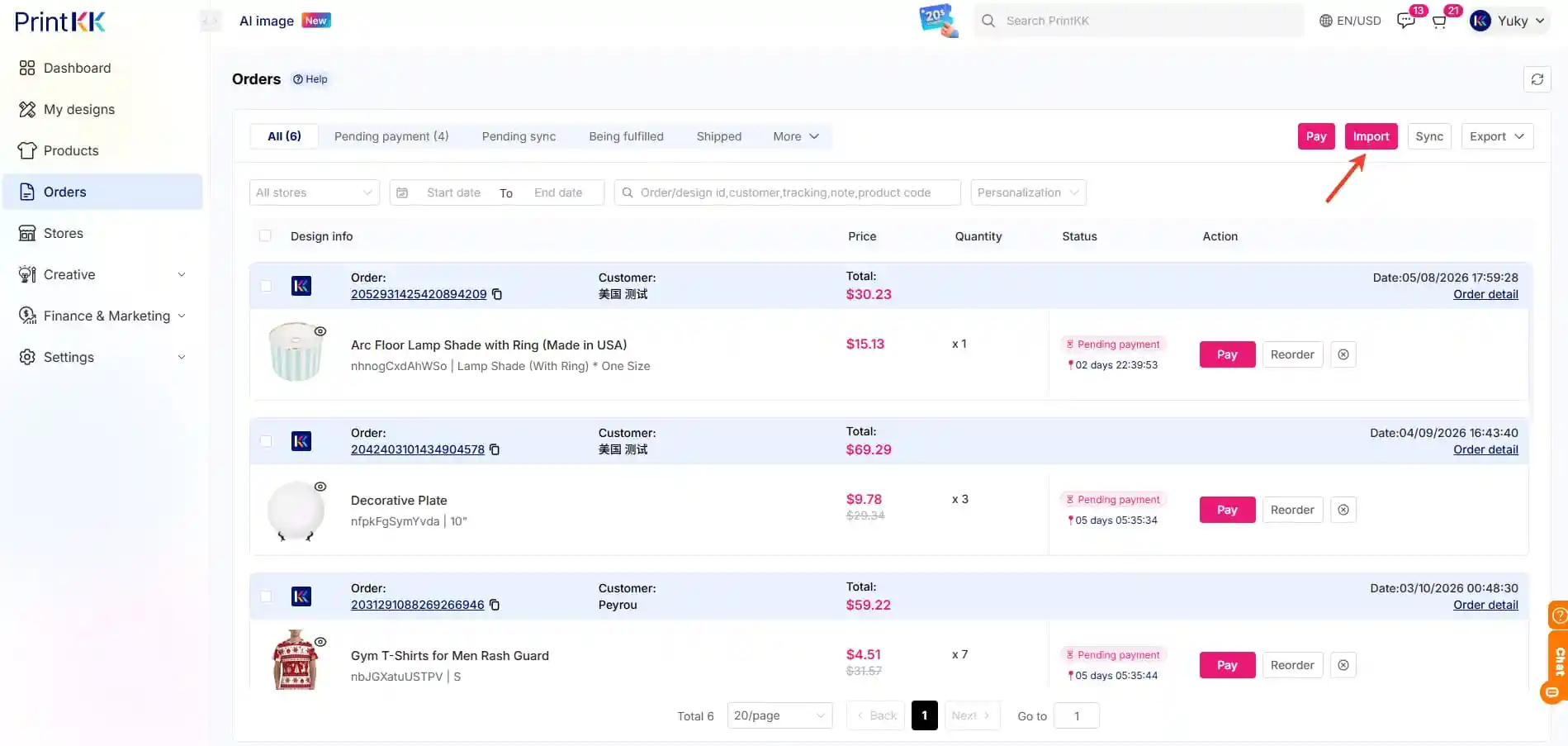
-Go to your PrintKK Dashboard → [Orders] → [Import Orders].
-Upload your exported spreadsheet.
Result: As long as the SKUs match, our system will automatically identify the products and generate orders for you to pay and fulfill.
📧 Need a Template?
To ensure the smoothest import, we recommend using our standard Order Import Template. You can download it directly from the [Import Orders] page.