

Help Centre
How can we help you?


General Help Topics
If you want to link your Wix store with PrintKK, you need to have both PrintKK and Wix accounts.
Method 1: integrate from the PrintKK
Method 2: integrate from Wix
Method 1:
1. Access your Dashboard: Log in to your account and navigate to the "Dashboard" section.
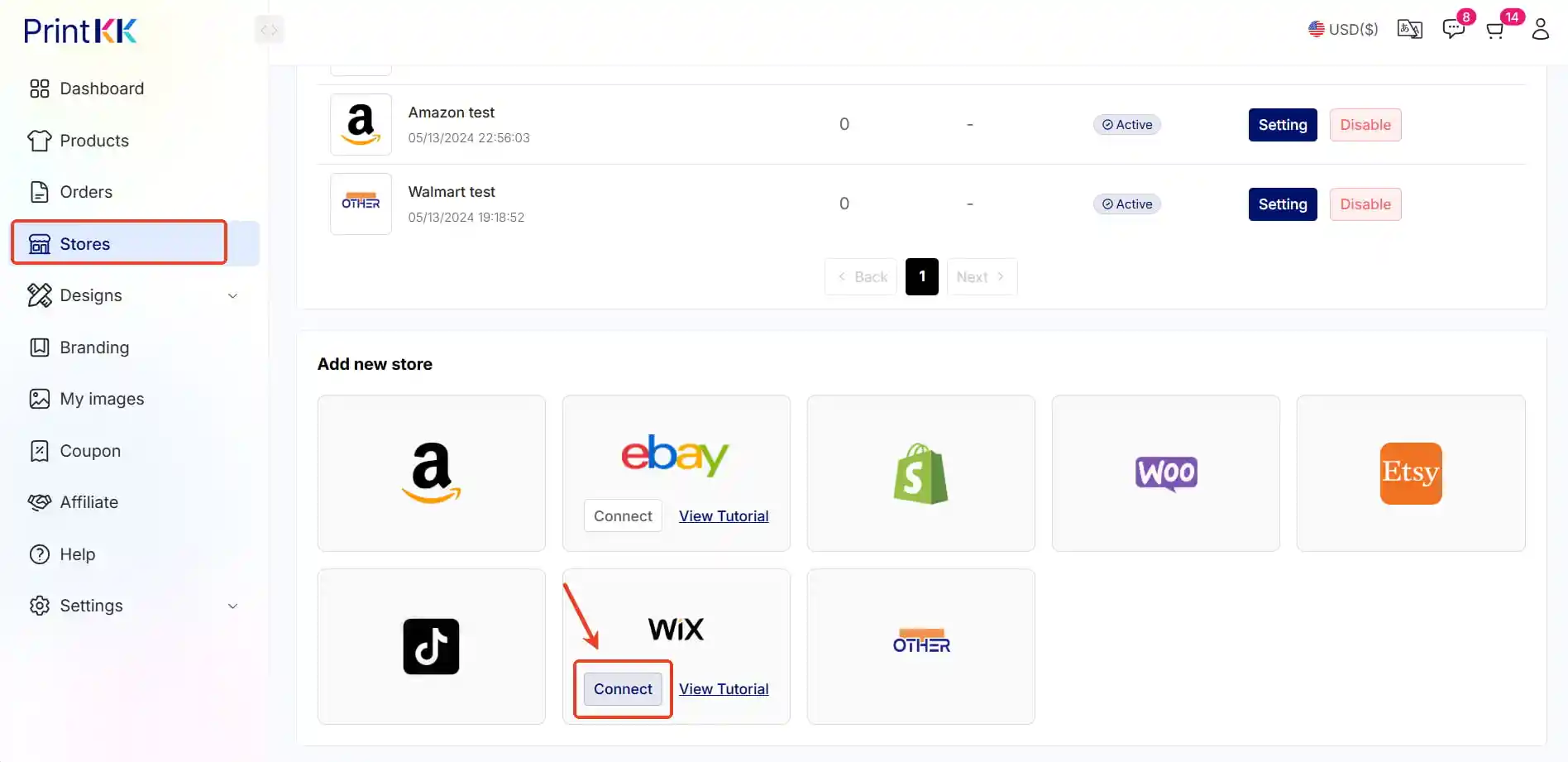
2. Go to Store Settings: Once in the Dashboard, click on "Stores" and then select "Store Settings".
3. Select Wix: In the Store Settings menu, locate the ”Wix“ option and click on it.
4. Add a New Store: Click on "Connect" to begin the integration process
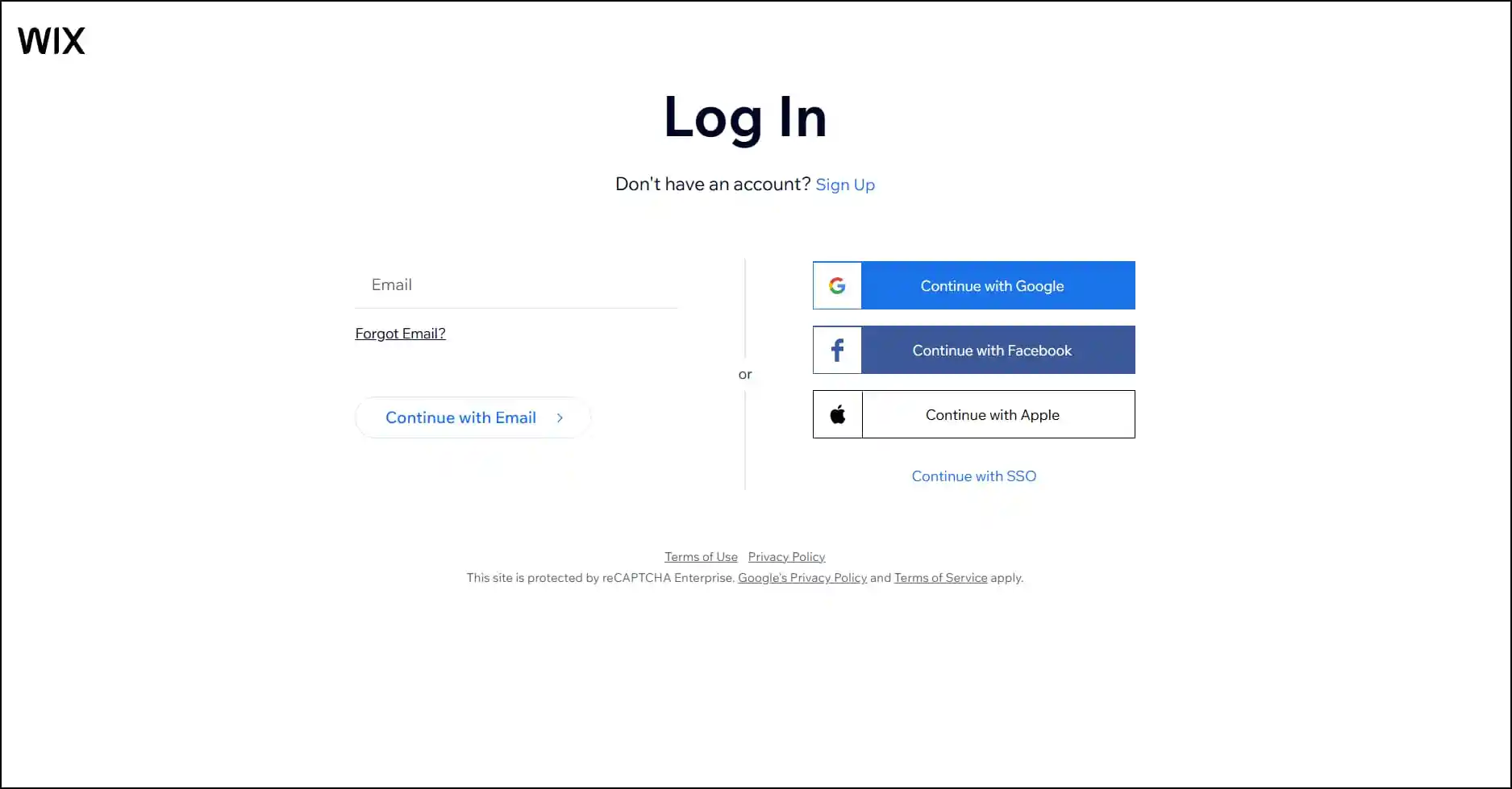
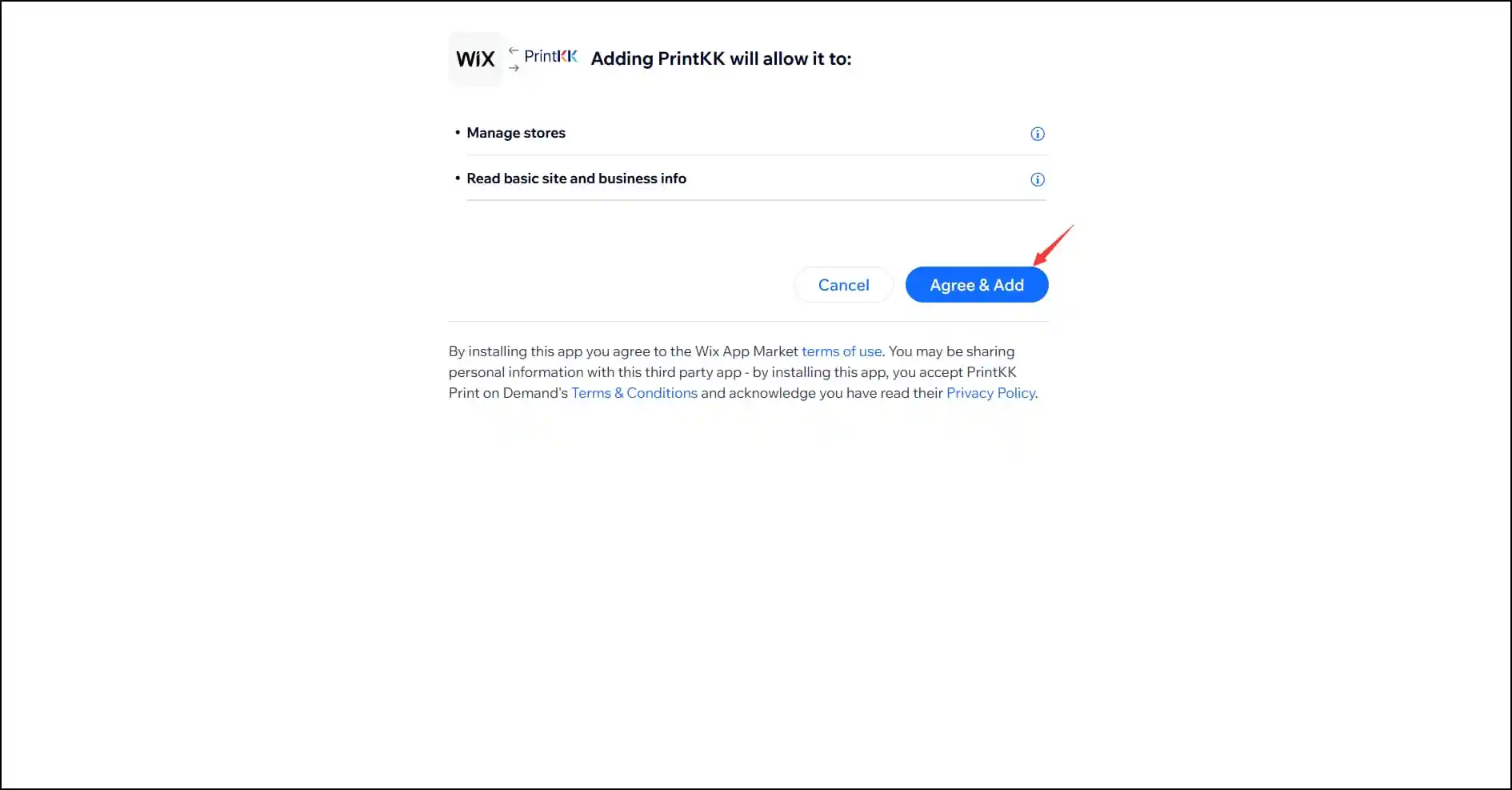
5. Access your Wix Account, then click the "Agree & Add" button.
6.Successfully Connect Store: After selecting your store, the page will redirect to PrintKK's page. Once you see the message "Successfully connected store," it indicates that your store has been successfully linked.