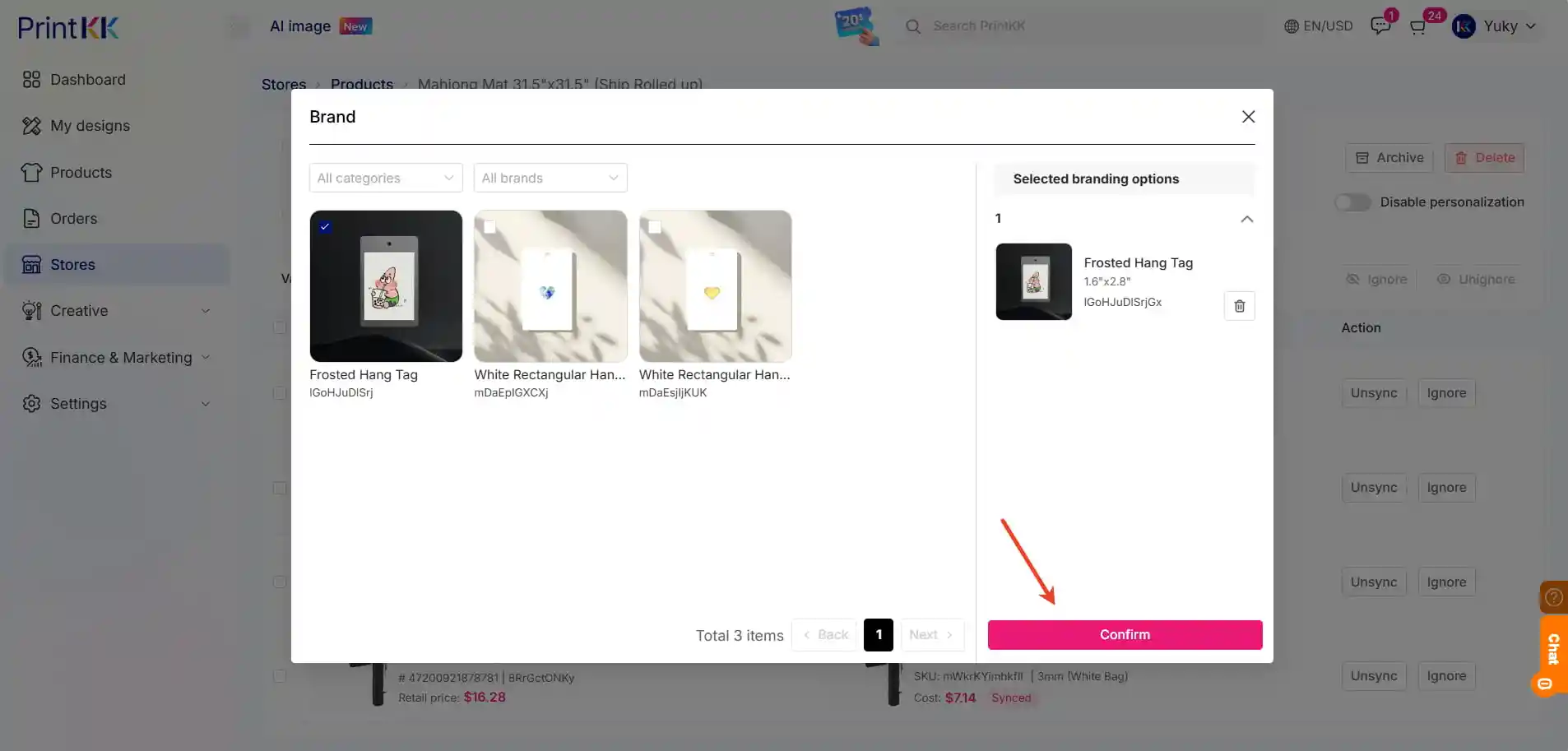



You can modify or remove branded products for your published items in two ways, based on your needs: Edit in unpaid orders (sync to store) or Edit in your PrintKK store (applies to all future orders for the product). The detailed steps are as follows:
Method 1: Edit in the Order (Sync to Your PrintKK Store)
Applicable for adjusting branded products only for unpaid orders; you may choose whether to sync the changes to your store during the modification.
1. Locate your unpaid order and click Order detail;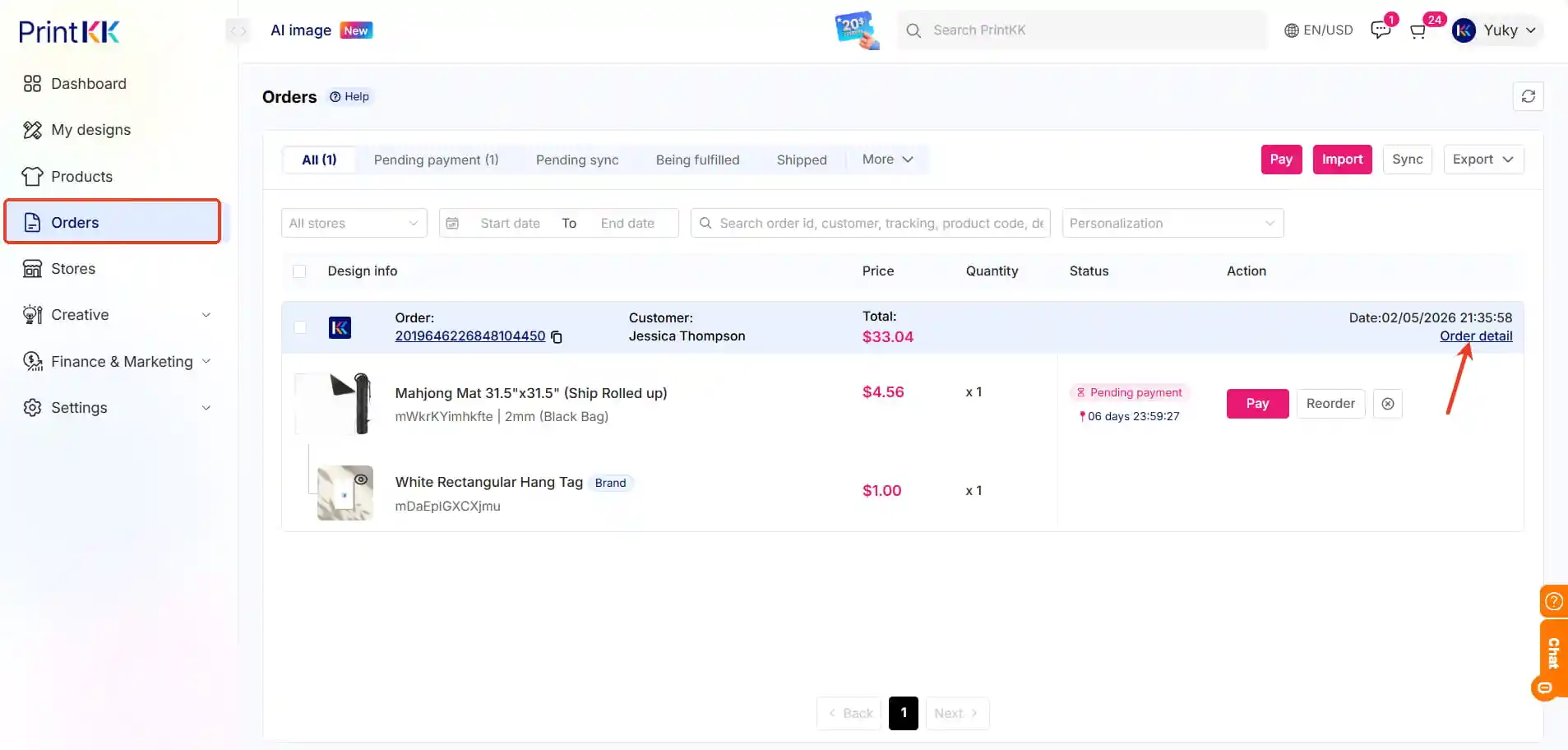
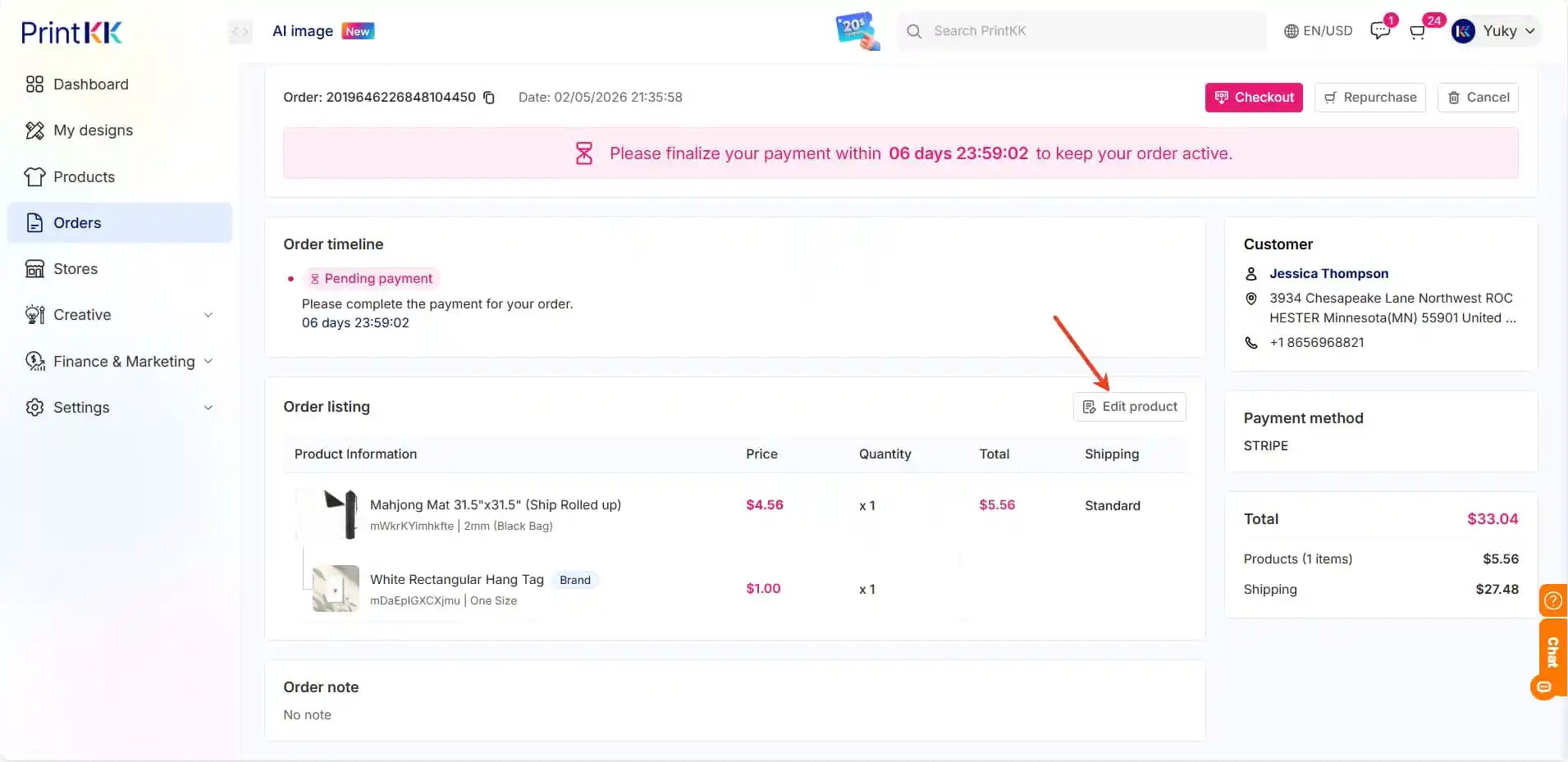
2. On the order detail page, find and click Edit product;
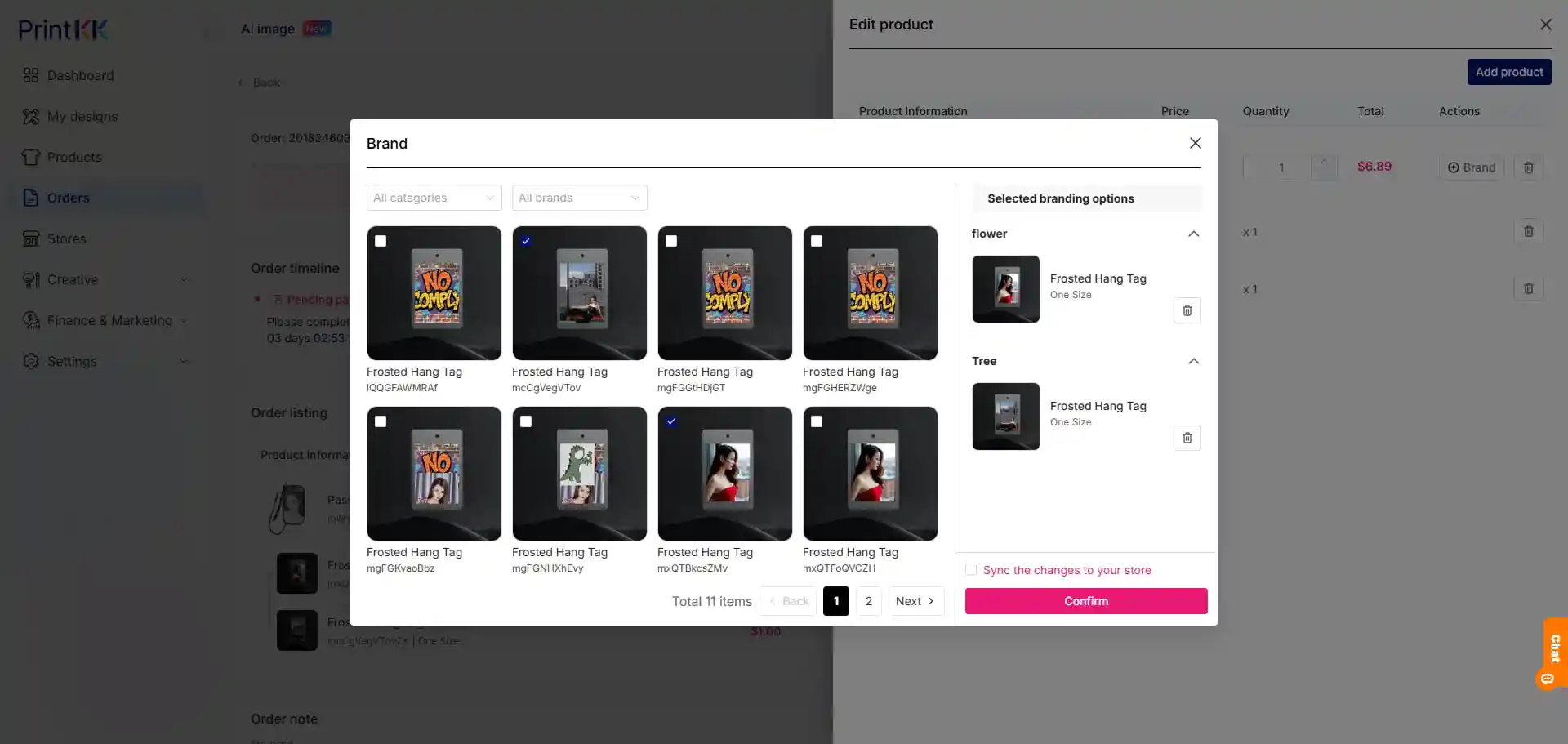
3. On the editing page, directly delete the existing branded products or add new ones;
4. Tick the box for Sync the changes to your store at the bottom of the page, then click confirm to complete the operation.
Method 2: Edit in Your PrintKK Store (Applies to All Future Orders)
Applicable for changes that need to take effect for all new future orders of the product; after the operation, the branded products of the published product in your store will be updated synchronously, and all subsequent orders will follow the new settings.
1. Go to your PrintKK store, locate the relevant product for which you want to change branded products, and click view;
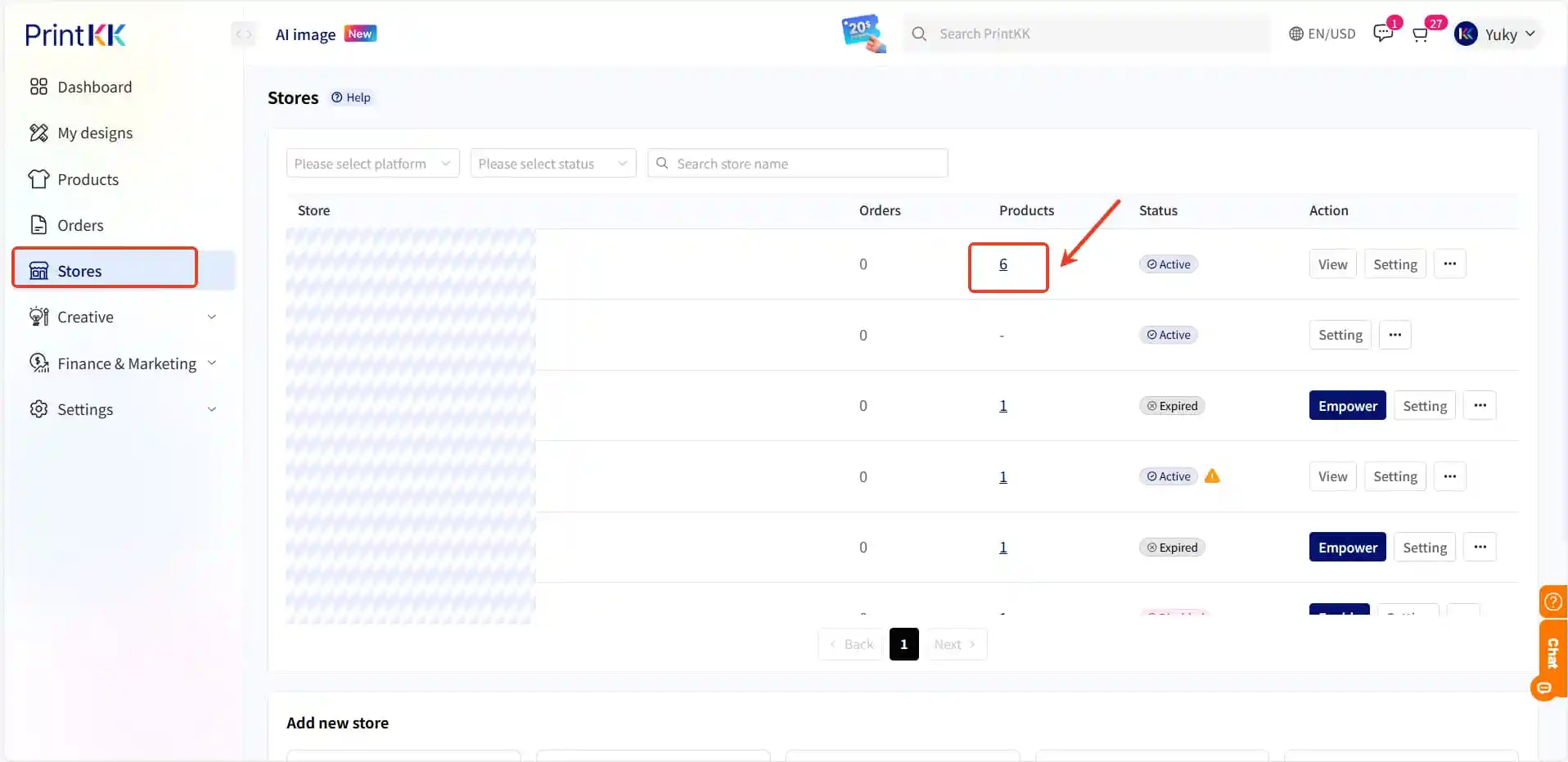
2. At the top of the product detail page, find and click the manage icon;
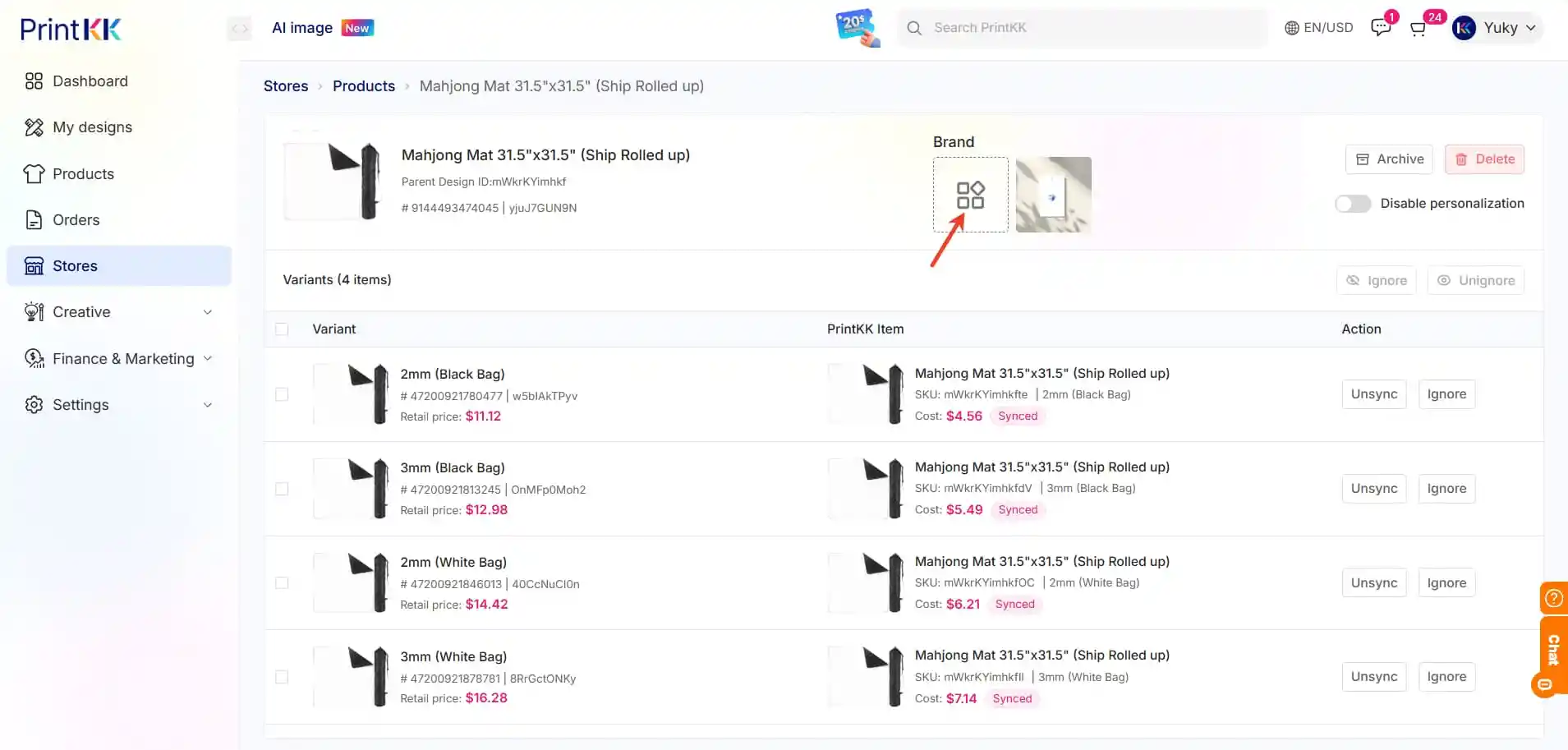
3. On the management page, delete the existing branded products or add new ones;
4. Click Confirm to finish modifying the branded products for the store product.